
ฟังก์ชัน ของเรา
เสริมศักยภาพองค์กรของคุณด้วยระบบรวมศูนย์ที่ออกแบบมาเพื่อติดตาม จัดการ และควบคุมกิจกรรมทางธุรกิจแบบเรียลไทม์ เราทำให้ความซับซ้อนเป็นเรื่องง่าย เพื่อการดำเนินงานที่ชาญฉลาดในระดับสากล

Dashboard
Dashboard page for displaying an overview of all project workflows within the system, including the total number of projects and remaining tasks. It also shows the completion percentage of each project. Access conditions are defined so that CEOs and Admins can view all project dashboards.
ดู — เปิดฟังก์ชันนี้
Project Overview page
Page for creating and editing project lists. Users can add, edit, and delete projects. Deletion is performed as a soft delete, meaning the project is not permanently removed from the system. Users can also view detailed information for each project.
ดู — เปิดฟังก์ชันนี้
Create Project page
Popup window for creating a project, including setting the start date, end date, and number of project phases.
ดู — เปิดฟังก์ชันนี้
Create Project from Template
The system can duplicate predefined project templates. It copies all subtasks within the template to create a new project or duplicated version.
ดู — เปิดฟังก์ชันนี้
Project Overview
Page displaying the project overview in dashboard format, showing the number of tasks categorized by status, along with each task’s start and end dates. Overdue tasks will be highlighted in red.
ดู — เปิดฟังก์ชันนี้
Project Tasks
Project task management page used to assign responsible users, update task statuses (such as “In Progress”), display start and end dates, and allow PMs/Admins to open or close projects.
ดู — เปิดฟังก์ชันนี้
Update Project Task Status
Project task management page used to assign responsible users, update task statuses (such as “In Progress”), display start and end dates, and allow PMs/Admins to open or close projects.
ดู — เปิดฟังก์ชันนี้
Task Details
The system allows users to view task details by clicking the eye icon, which opens a popup window. Users can also add comments, report expenses, and submit project-related issues.
ดู — เปิดฟังก์ชันนี้
Add Task Expense
This page allows users to add additional expenses related to tasks. Please enter expense details accurately to ensure effective cost tracking and project budget management.
ดู — เปิดฟังก์ชันนี้

Manage Project Members & Roles
Users can search and add project members by typing usernames and assigning roles.
ดู — เปิดฟังก์ชันนี้
Project Settings
Project task management page where users can add new tasks under project phases, create subtasks, edit or delete tasks, and assign responsible users for each task.
ดู — เปิดฟังก์ชันนี้
Project Members & Roles
Users can search and add project members by typing usernames and assigning roles.
ดู — เปิดฟังก์ชันนี้
Add / Edit Subtasks
This page allows users to add or edit subtasks within task lists. Please provide clear details to ensure efficient task tracking and organization.
ดู — เปิดฟังก์ชันนี้
Edit Main Task
Page for adding subtasks under a main task, including setting start and end dates. This is useful when users need to add subtasks such as requirement gathering and requirement analysis.
ดู — เปิดฟังก์ชันนี้
Assign Task Owner
Page for assigning task owners. The system supports assigning tasks to users within the project, and multiple users can be assigned to the same task.
ดู — เปิดฟังก์ชันนี้
User Management
User management page where administrators can add users, edit user information, and modify user permissions and roles.
ดู — เปิดฟังก์ชันนี้
Add User
Page for adding users. Administrators can specify user details, assign roles and organizations, support multiple departments, and add multiple users at once.
ดู — เปิดฟังก์ชันนี้

Restore User
Deleted data is not permanently removed immediately. The system retains deleted records using a soft delete mechanism, allowing user restoration.
ดู — เปิดฟังก์ชันนี้
Manage Project Templates
The system supports creating project templates, which can later be duplicated when creating new projects.
ดู — เปิดฟังก์ชันนี้

User Management
Page displaying details of project templates. Users can create templates and add tasks by clicking the template settings button.
ดู — เปิดฟังก์ชันนี้
Add User
Page for managing tasks within project templates. Users can add new tasks under project phases, create subtasks, edit tasks using the edit icon, delete tasks, and assign responsible users.
ดู — เปิดฟังก์ชันนี้
Banner Management
Page for managing and displaying banner slides. Users can add or delete banners.
ดู — เปิดฟังก์ชันนี้
Create Banner
Form page for adding banner slides, where users can also attach links.
ดู — เปิดฟังก์ชันนี้

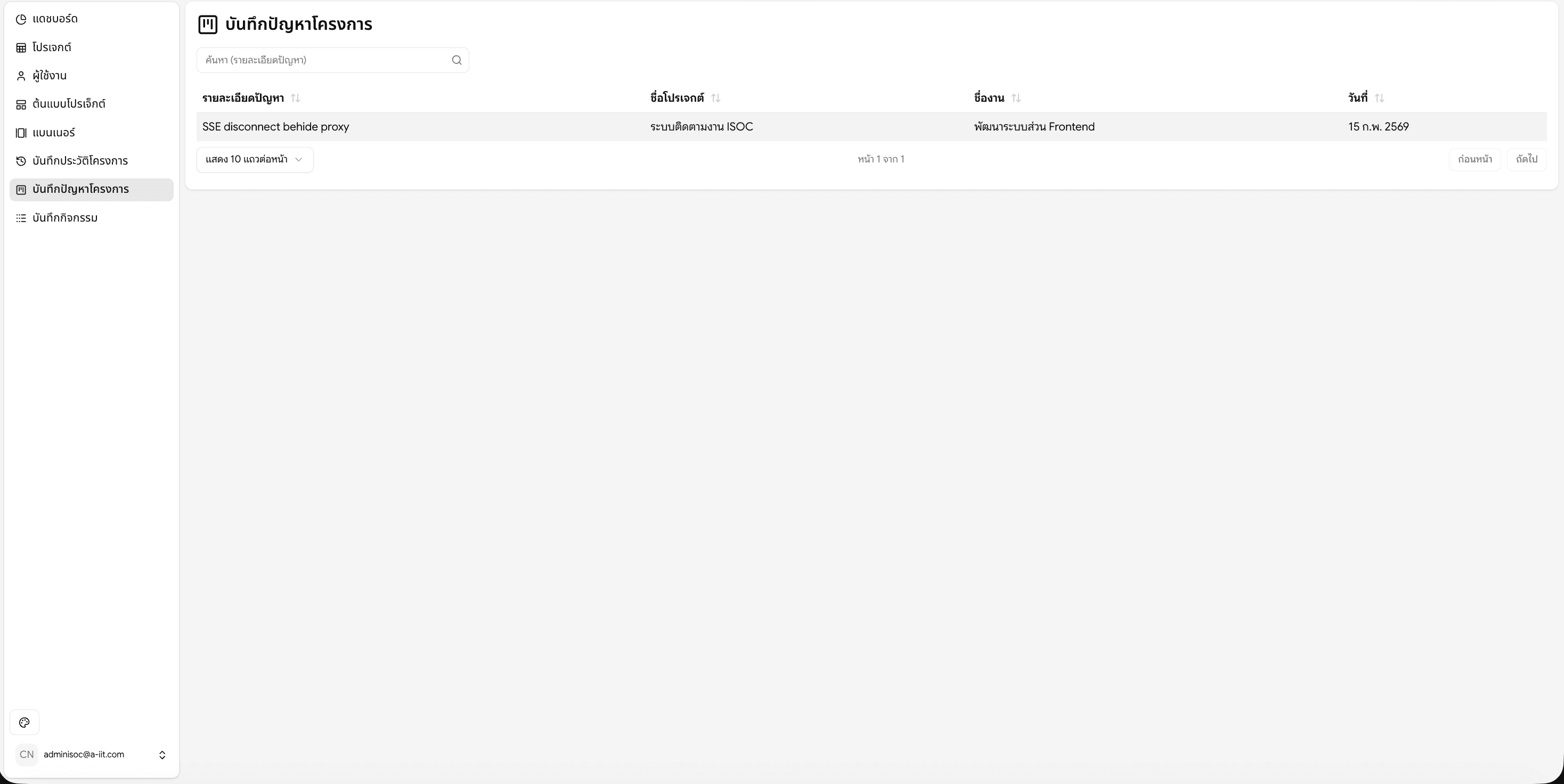
Project Issues
Page for editing user information by entering updated details.
ดู — แสดงภาพหน้าจอด้านล่าง

Website Theme Settings
The system supports customization of the website display theme and appearance settings.
ดู — เปิดฟังก์ชันนี้